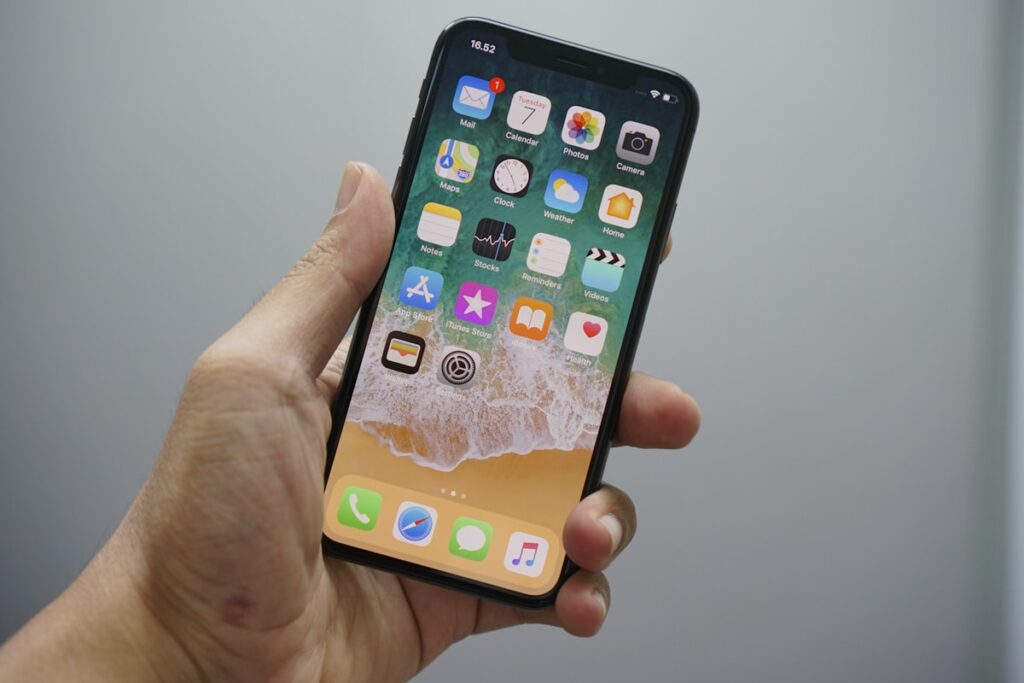
Pre owned iPhones offer excellent camera quality and long software support. This essential checklist explains how to verify iCloud activation status, check battery maximum capacity, test True Tone and Face ID, and confirm carrier unlocking in Kenya.
Checking iCloud and Activation Lock
Before handing over any cash, open Settings and confirm the previous owner has signed out of their Apple ID. Go to Settings > General > Transfer or Reset iPhone > Erase All Content and Settings. Activate the phone to the home screen to ensure it is not activation locked.
Verifying Battery Maximum Capacity and Parts History
Check Settings > Battery > Battery Health. A battery health percentage above eighty percent offers good daily usage. In iOS Settings > General > About, check if any replacement screen or camera parts trigger an unknown part warning.
Testing Face ID and True Tone Display
Set up Face ID with your face. Go to Control Center and long press the brightness slider to ensure the True Tone option exists. Missing True Tone often indicates an aftermarket screen replacement.
Confirming Clean IMEI and SIM Freedom
Insert your Safaricom or Airtel SIM card. Make a test phone call and browse the internet. Go to Settings > General > About and verify that Network Provider Lock says No SIM restrictions.
Browse Verified Phones
Find verified smartphones on Rehome Kenya.
Practical Tips for the Kenyan Market
When shopping for pre owned goods in Kenya, factor in transport logistics, electrical surge protection, and physical inspection. Always test appliances, furniture joints, and device functionalities thoroughly before completing payment on M-Pesa.
Dealing with verified local sellers or working with Rehome agents provides an extra layer of security, ensuring you get authentic value without unexpected repair costs.